Capture your first screenshot
Press Win + Shift + A and drag over the rectangular area you want to capture.
Multiple screenshots on Windows
Need several screenshots from different parts of your screen? Learn the built-in Windows method, then see how SnipQueue lets you capture multiple areas first and paste them together later.
Capture more. Paste once.
SnipQueue for Windows · Full functionality · 7-day free trial · Windows only
Download Free Trial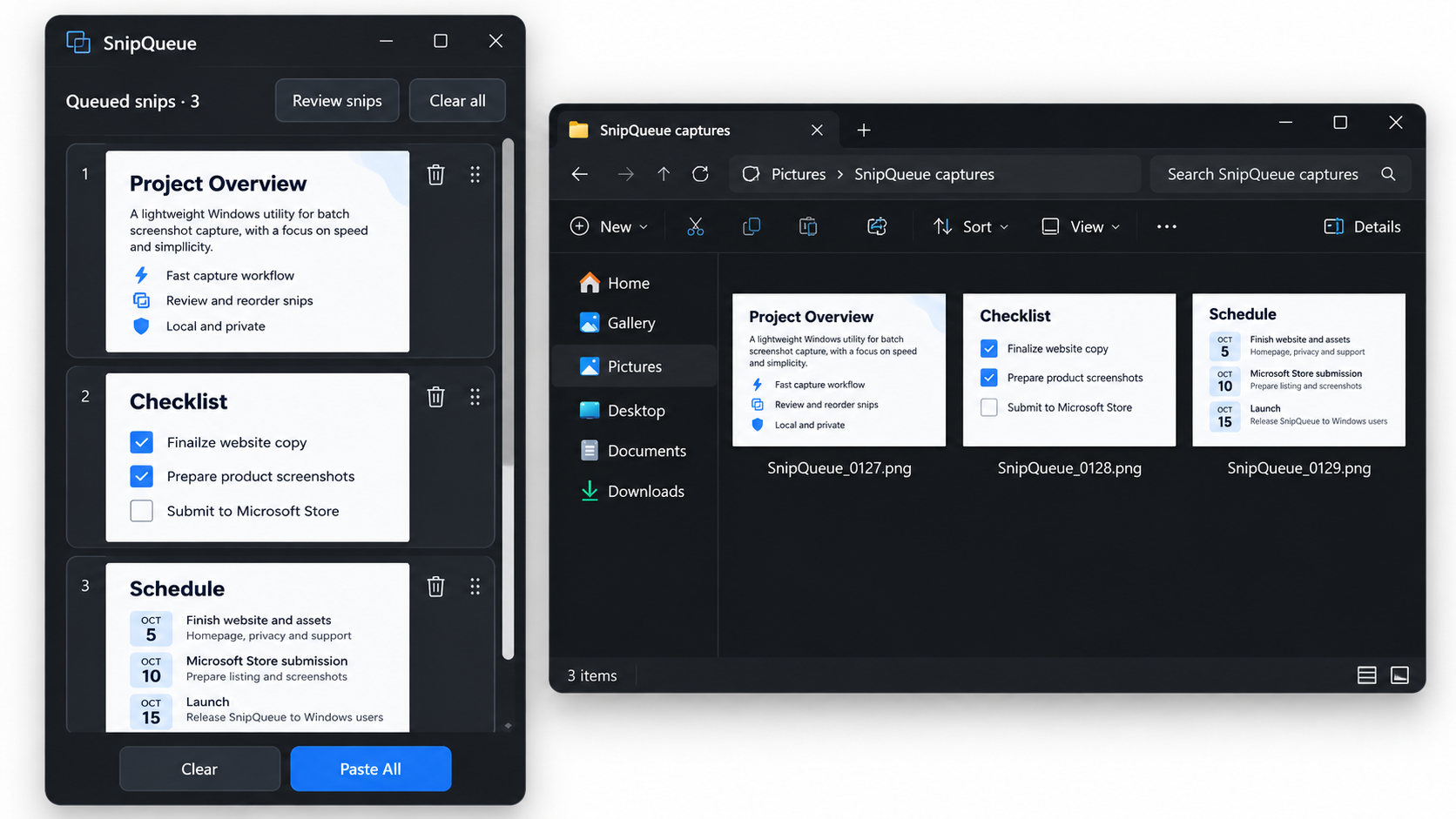
Windows 10 and Windows 11 include built-in screenshot shortcuts. For a rectangular screen capture, press Win + Shift + S, then drag over the area you want.
The captured image is copied to your Windows clipboard. Open your destination application and press Ctrl + V to paste it.
Repeat these steps for each additional screenshot. If you copy something else in between, your current clipboard contents can change. Windows clipboard history, when enabled, can also help you access earlier copied items.
SnipQueue adds a temporary screenshot queue so you can collect the images you need before switching to your destination application.
Press Win + Shift + A and drag over the rectangular area you want to capture.
Repeat the capture shortcut for additional areas. Each screenshot joins your temporary queue without requiring an immediate paste.
Review or reorder your captures, then press Ctrl + Shift + B to Paste All into a compatible application.
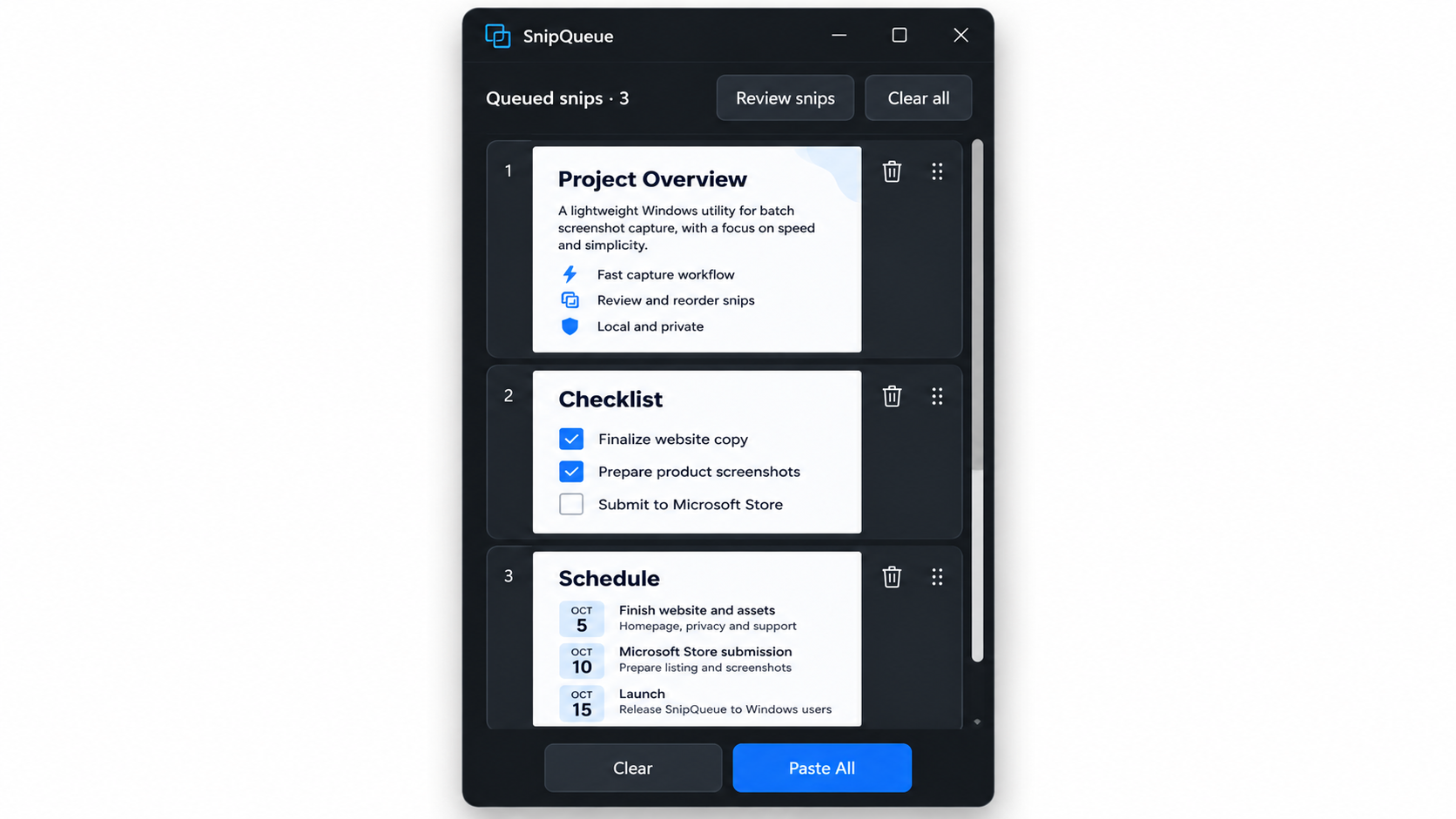
SnipQueue stores captures in its own temporary queue alongside the normal Windows clipboard. You can continue copying text and other content while collecting screenshots.
Paste All doesn't automatically clear the queue, so your screenshots remain available for another paste until you clear them.
See how the screenshot queue works for more details.
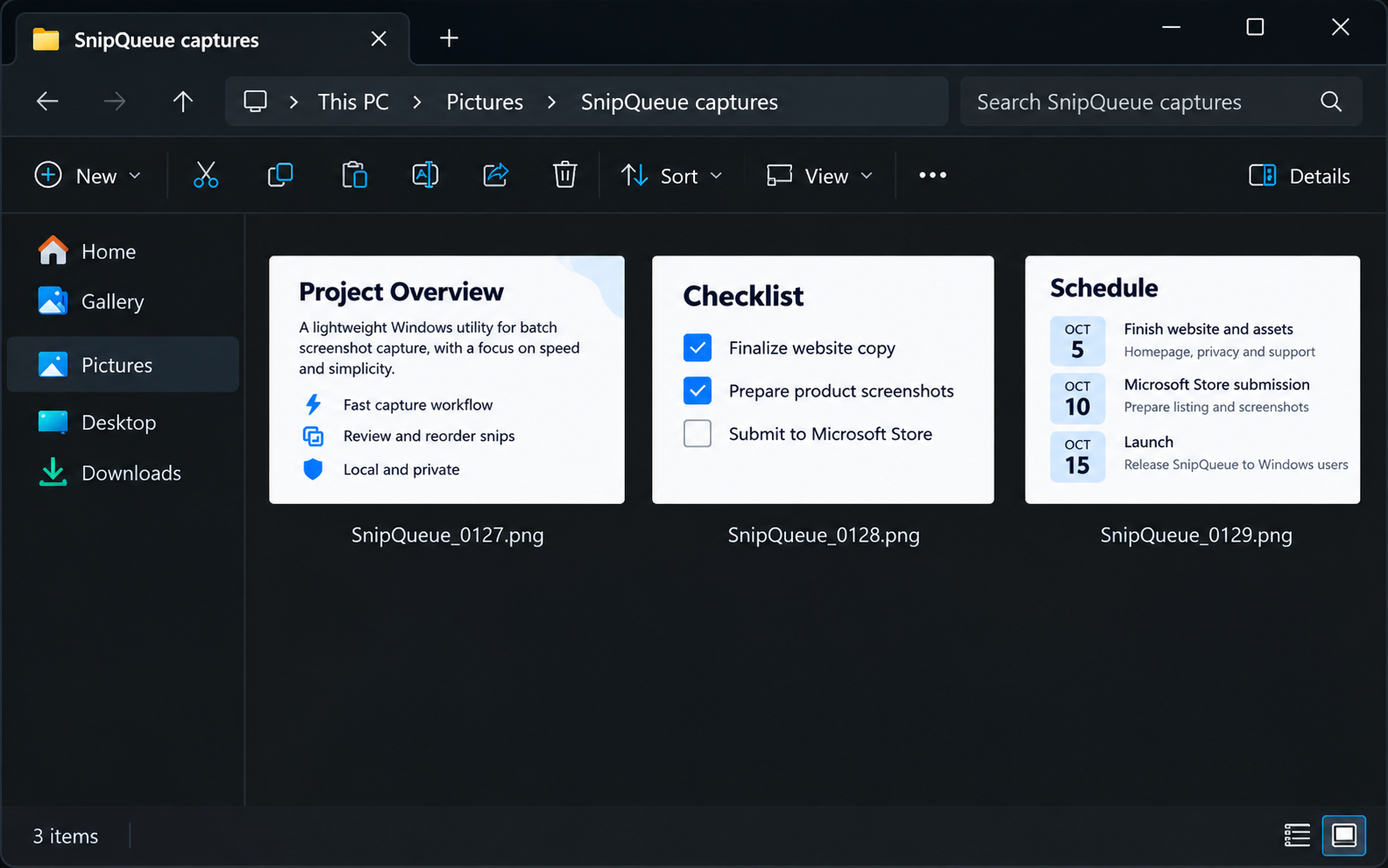
Need image files instead of pasted screenshots? Open the destination folder in Windows Explorer and use SnipQueue's Paste All command.
SnipQueue creates separate JPEG or PNG files with sequential filenames, so you don't need to save each screenshot manually.
Batching screenshots is useful for bug reports, software troubleshooting, tutorials, research, AI conversations and any task where several images need to be collected before sharing.
Looking for a lightweight capture utility? Explore our Windows screen capture tool.
Use Win + Shift + S for individual captures, or use SnipQueue to collect multiple rectangular screenshots in a temporary queue before pasting.
Yes. SnipQueue lets you collect multiple screenshots and use Paste All when you're ready.
Yes. Open the SnipQueue review window to reorder captures or remove individual screenshots.
Not necessarily. Paste All works with compatible applications, and support for multiple pasted images varies by destination.
SnipQueue includes all features in a 7-day Windows trial. Activate a paid licence to continue after the trial.
Collect the screenshots you need, review them and paste the batch when you're ready.
SnipQueue for Windows · 7-day free trial
Download Free Trial