Capture multiple screenshots
Press Win + Shift + A and select a rectangular area. Repeat to add more screenshots to your queue without pasting between captures.
Screenshot Queue for Windows
Capture multiple screenshots into a separate queue, review and reorder them, then paste them all at once. Your normal Windows clipboard remains available.
Capture more. Paste once.
SnipQueue for Windows · Full functionality · 7-day free trial · Windows only
Download Free Trial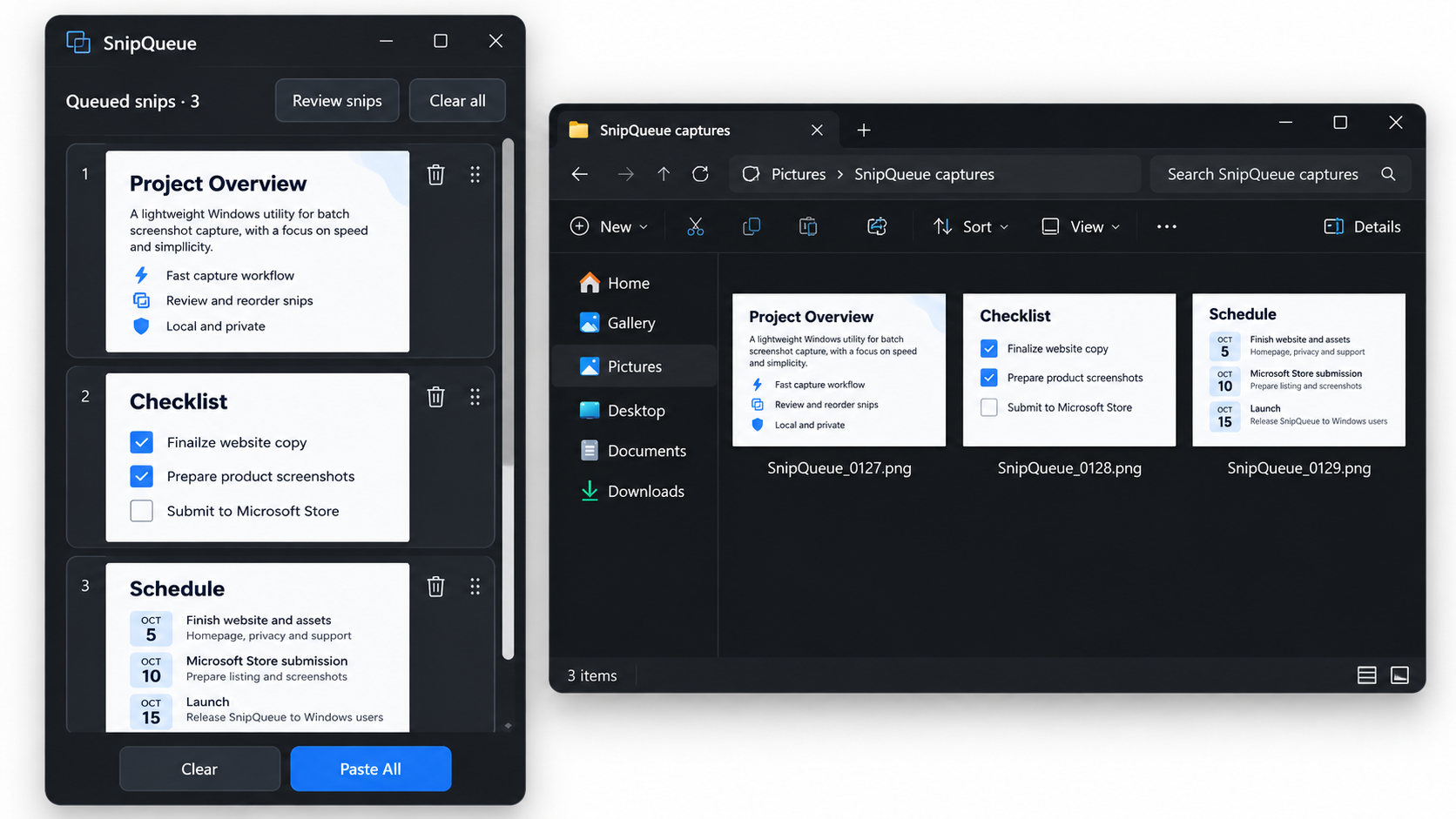
When you need several screenshots, the usual workflow interrupts you after every capture.
With SnipQueue, collect everything first and paste when you're ready.
Press Win + Shift + A and select a rectangular area. Repeat to add more screenshots to your queue without pasting between captures.
Open Review snips to see your captures. Drag screenshots into your preferred order or remove any you don't need.
Press Ctrl + Shift + B to paste queued screenshots in order into a compatible application, or create individual image files in Windows Explorer.
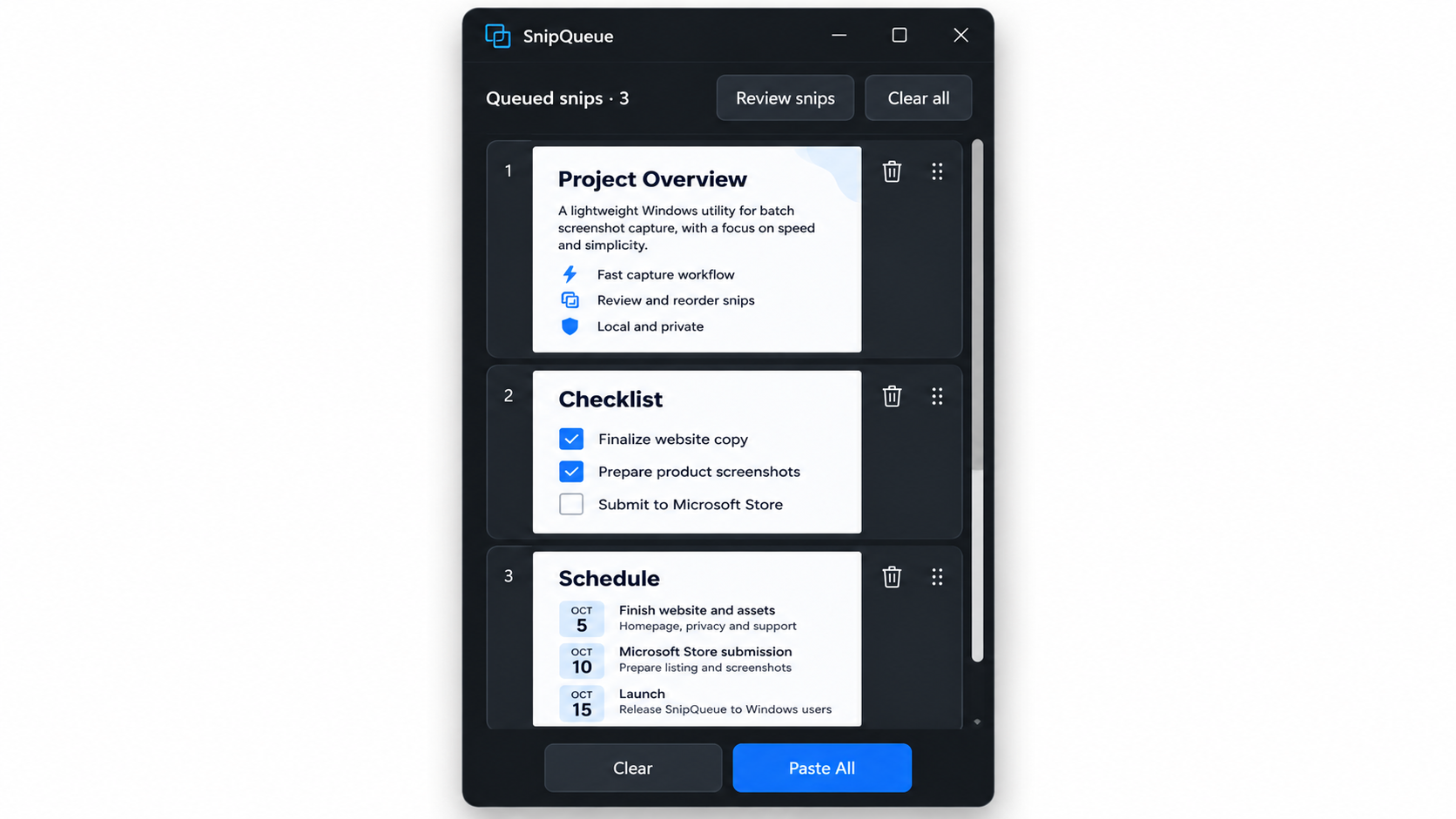
SnipQueue keeps captured screenshots in its own temporary queue alongside the normal Windows clipboard. You can continue using regular copy and paste while collecting screenshots.
The queue remains available after Paste All, so you can paste the same captures again. Clear it when you're finished.
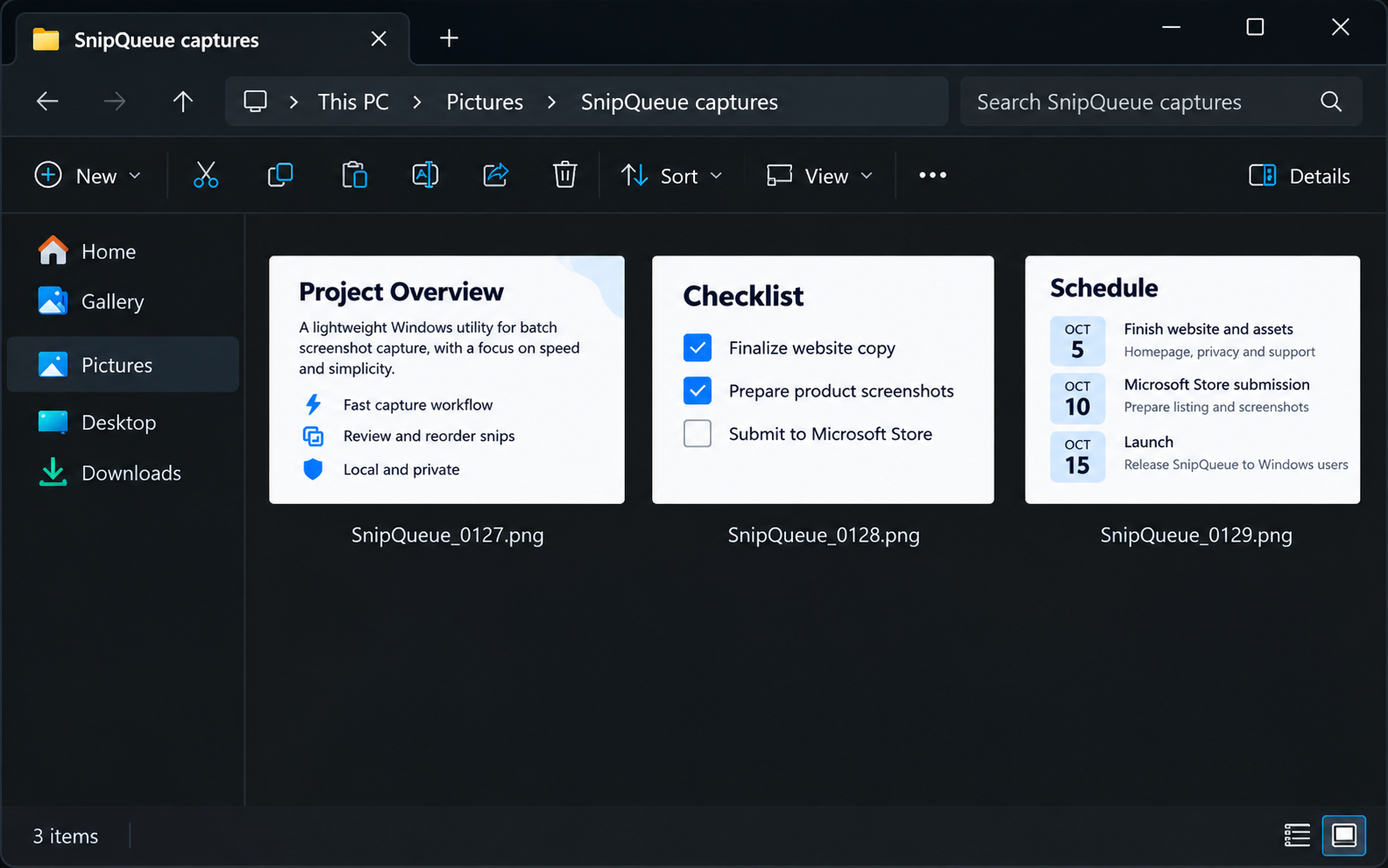
Need files instead of pasted images? Open a folder in Windows Explorer and use Paste All.
SnipQueue generates individual JPEG or PNG files with sequential filenames, without manually saving each screenshot.
Collect screenshots for AI conversations, bug reports, step-by-step documentation, research or sharing visual references without repeating the capture-and-paste process.
SnipQueue processes captures locally. No SnipQueue account or cloud screenshot upload is required.
Yes. Each capture joins your temporary SnipQueue queue. Review them and use Paste All when you're ready.
No. SnipQueue maintains a separate screenshot queue alongside the normal Windows clipboard.
Yes. Review snips lets you rearrange captures and delete individual screenshots before pasting.
Yes. Paste All into Windows Explorer to generate separate JPEG or PNG image files.
Try every SnipQueue feature free for seven days on Windows. Continue with a US$4.95 one-time licence for up to two Windows devices. No subscription.
Try the SnipQueue screenshot queue for Windows.
SnipQueue for Windows · 7-day free trial
Download Free Trial