Capture multiple screen regions
Use Win + Shift + A to select rectangular areas and collect screenshots in a temporary queue.
Lightweight screen capture for Windows
Need to capture several parts of your screen? SnipQueue lets you collect multiple screenshots, review them in one place and paste them together when you're ready.
Capture more. Paste once.
SnipQueue for Windows · Full functionality · 7-day free trial · Windows only
Download Free Trial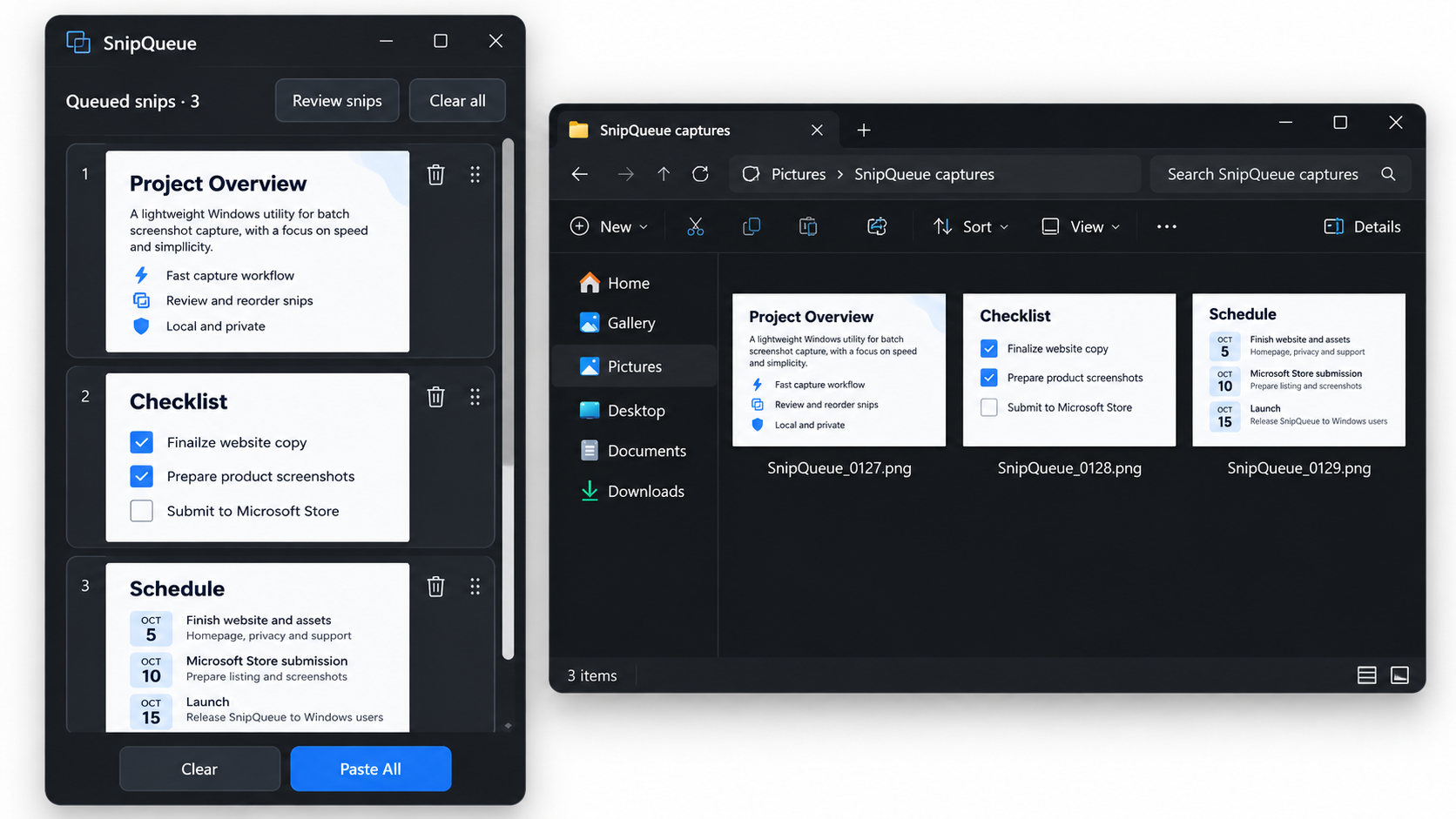
Windows already includes screenshot shortcuts and the Snipping Tool. They're useful for individual captures, but collecting several screenshots often means repeatedly switching between the screen and your destination application.
SnipQueue focuses on that repeated-capture workflow. Instead of pasting after every screenshot, capture the areas you need first and deal with them together.
Use Win + Shift + A to select rectangular areas and collect screenshots in a temporary queue.
Review thumbnail previews, change their order and remove screenshots you no longer need.
Use Ctrl + Shift + B to paste queued images in order into compatible applications, or create separate image files in Windows Explorer.
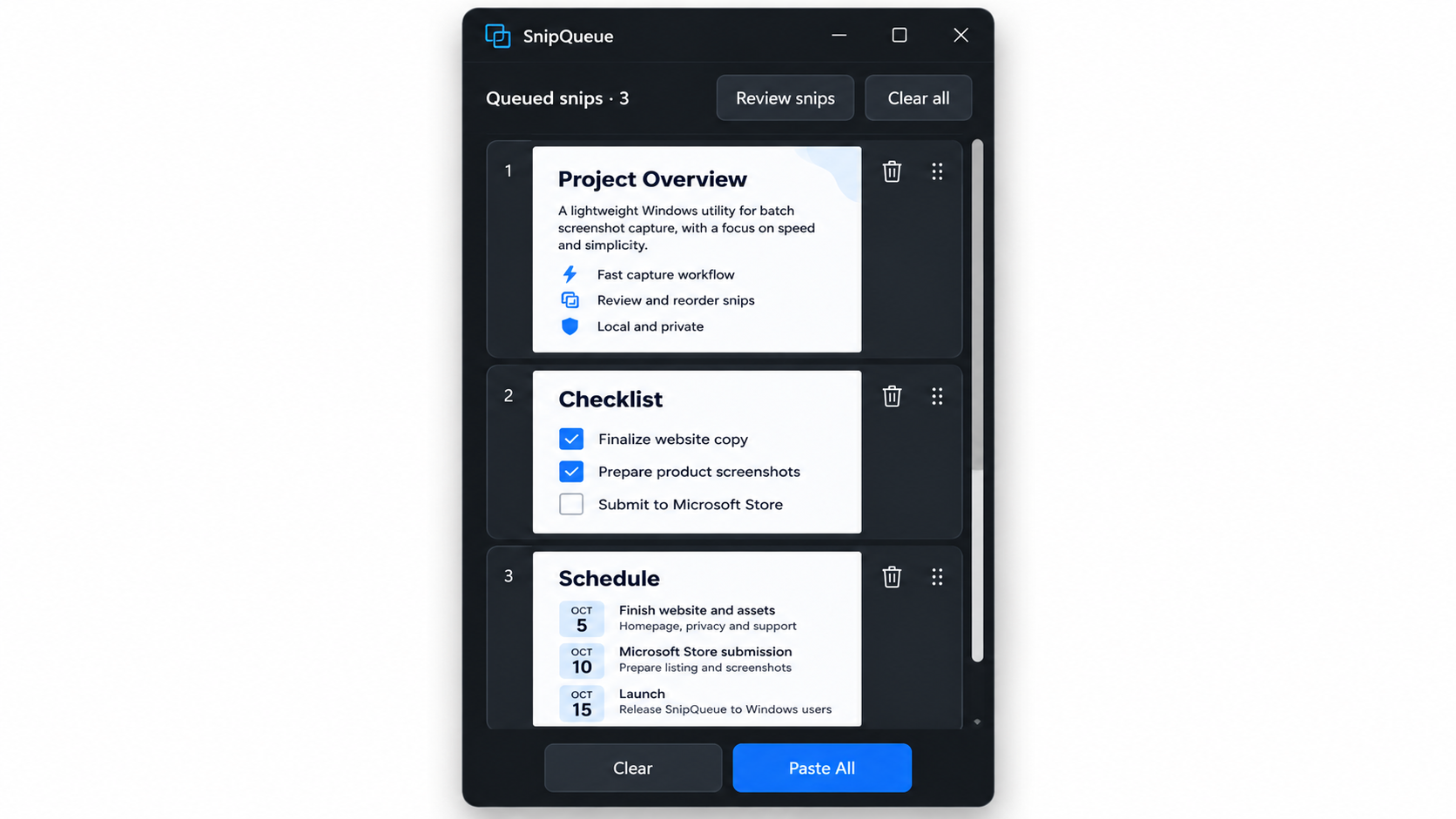
SnipQueue isn't intended to replace every feature of the built-in Snipping Tool. It's a focused Windows utility for people who frequently need more than one screenshot.
It keeps its own temporary screenshot queue alongside your normal Windows clipboard, so ordinary copying and pasting can continue while you collect captures.
For a closer look at the queue itself, see how SnipQueue's screenshot queue works.
Need individual files rather than pasted images? Open a destination folder in Windows Explorer and use Paste All.
SnipQueue can generate separate JPEG or PNG files with sequential names, without saving each capture manually.
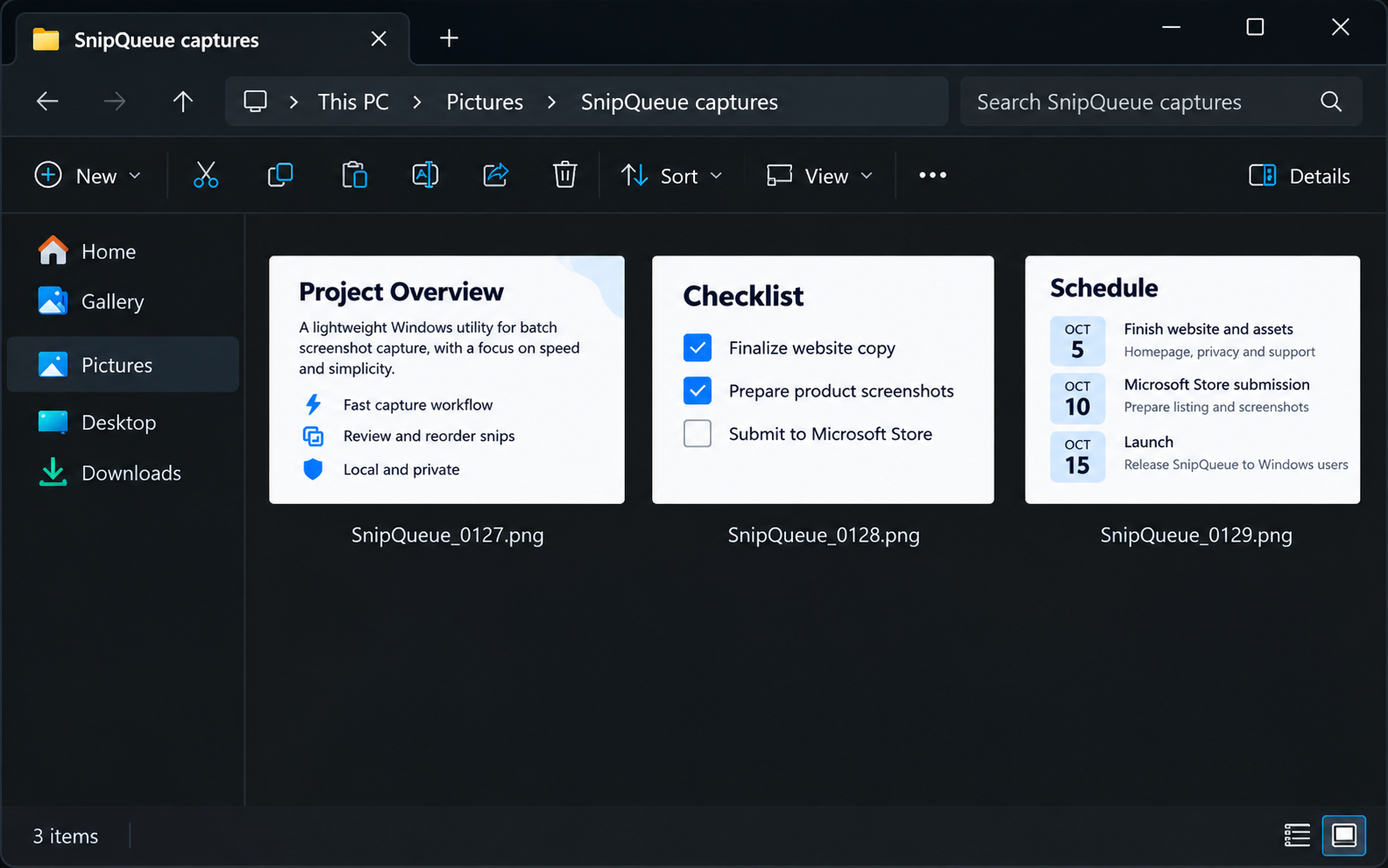
Use SnipQueue when collecting visual references, preparing bug reports, documenting steps, sharing screenshots in AI conversations or gathering research.
SnipQueue is designed as a focused Windows utility. Captures are processed locally, with no SnipQueue account or cloud upload required.
Yes. SnipQueue captures rectangular screen regions and stores them in a temporary queue so you can review and paste multiple screenshots together.
SnipQueue specialises in collecting and managing multiple screenshots before pasting. It complements the built-in Windows screenshot workflow rather than replacing every Snipping Tool feature.
Yes. Add captures to the queue, then use Paste All when you're ready. Support for multiple pasted images depends on the destination application.
No. SnipQueue maintains a separate temporary screenshot queue alongside the regular Windows clipboard.
Try every SnipQueue feature free for seven days. Continue with a US$4.95 one-time licence for up to two Windows devices. No subscription.
Try SnipQueue for faster multi-screenshot workflows on Windows.
SnipQueue for Windows · 7-day free trial
Download Free Trial